Updated for 2026 — This article has been reviewed and updated with the latest recommendations.
Mo' Paper Mo' Problems: Easy Steps to Going Paperless in 2026
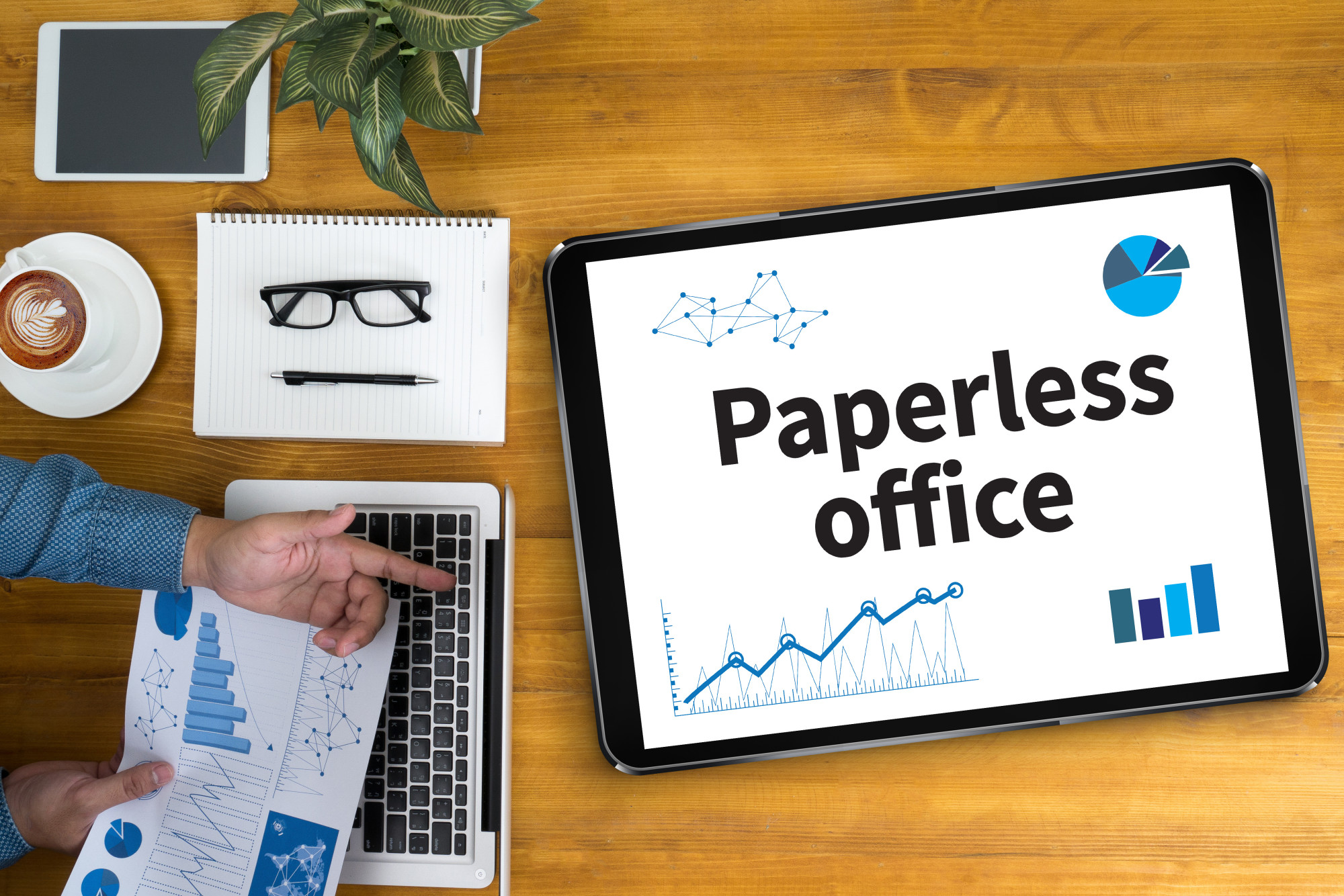
Paper clutter is more than an inconvenience. It costs businesses real money in storage, printing, and lost productivity from hunting through filing cabinets. Going paperless in 2026 is easier than ever, thanks to better scanning apps, cloud storage, and digital signature tools. Here is a practical, step-by-step approach to eliminating paper from your workflow.
Step 1: Choose a Document Scanner (or Use Your Phone)
You do not necessarily need a dedicated scanner anymore.
Apps like Adobe Scan (free) and Microsoft Lens (free) turn your smartphone camera into a capable document scanner with automatic edge detection, perspective correction, and OCR text recognition. If you process a lot of documents, a dedicated scanner like the Fujitsu ScanSnap iX1600 ($400) or the Brother ADS-4700W ($350) handles high volumes much faster. The ScanSnap iX1600 scans 40 pages per minute and sends directly to cloud services.
Step 2: Set Up Cloud Storage
Every scanned document needs a home.
Google Drive (15 GB free, $2.99/month for 100 GB) integrates with Google Workspace and offers built-in OCR search. Microsoft OneDrive ($2/month for 100 GB) works seamlessly with Office apps. Dropbox ($11.99/month for 2 TB) excels at file sharing and team collaboration. For maximum privacy, Proton Drive ($4.99/month for 200 GB) offers end-to-end encryption. Pick whichever fits your existing ecosystem.
Step 3: Organize With a System That Sticks
The most common reason paperless systems fail is poor organization.
Create a folder structure that mirrors how you think about documents. A simple approach: top-level folders by category (Financial, Medical, Legal, Personal, Work), then subfolders by year. Name files with dates first (2026-03-15-Tax-Return.pdf) so they sort chronologically. Consistent naming is more important than the perfect folder structure.
Step 4: Replace Paper Notes
Digital note-taking has gotten remarkably good.
Notion (free for personal use) combines notes, databases, and project management in one tool. Obsidian (free) uses local Markdown files with powerful linking between notes. Apple Notes has improved significantly and now supports scanning, PDFs, and collaboration. For handwriting fans, the reMarkable 2 tablet ($349) and Apple iPad with Apple Pencil provide paper-like writing experiences with full searchability.
Step 5: Go Digital With Signatures
Printing documents just to sign them is one of the last paper holdouts. DocuSign (plans from $10/month) remains the industry standard for legally binding electronic signatures. Adobe Acrobat Sign ($12.99/month) integrates tightly with the Adobe ecosystem. For occasional personal use, HelloSign by Dropbox offers 3 free signatures per month. All three are legally valid in the US, EU, and most other jurisdictions.
Step 6: Manage Receipts and Expenses
Paper receipts fade, wrinkle, and get lost.
Expensify ($5/month) lets you photograph receipts and automatically extracts merchant, amount, and date information. Dext (formerly Receipt Bank, $24/month) handles higher volumes and integrates with accounting software like QuickBooks and Xero. For personal use, the free version of Smart Receipts captures and organizes everything adequately.
Step 7: Digital Mail Services
Physical mail is one of the harder paper sources to eliminate.
Services like Earth Class Mail ($19/month) and Traveling Mailbox ($15/month) provide you with a real mailing address. They receive your mail, scan the contents, and deliver digital copies to your inbox. You can then forward, shred, or ship the physical mail as needed. This is especially valuable for frequent travelers or remote workers.
Step 8: Automate Where Possible
Set up automatic paperless billing for utilities, insurance, and subscriptions.
Most banks now offer digital statement delivery. Use Zapier or Make (formerly Integromat) to create automations between your scanning apps and cloud storage. For example, you can set up a workflow where any document scanned to a specific folder automatically gets tagged, renamed, and filed in the right location.
What About Security?
Going paperless actually improves security in most cases.
Physical documents can be stolen, damaged by water or fire, or accessed by anyone walking through your office. Digital documents can be encrypted, backed up to multiple locations, and protected with two-factor authentication. Use strong passwords, enable 2FA on all cloud accounts, and keep at least one encrypted backup in a separate location.
The Bottom Line
Going completely paperless does not happen overnight, and that is fine. Start with the highest-volume paper sources in your life and work outward. Most people can eliminate 90% of their paper within a few weeks by setting up a phone scanner, choosing cloud storage, and switching to digital signatures. The remaining 10% (certain legal documents, sentimental items) can stay physical without guilt.
Get the best of Tech Stuffed
Expert guides, reviews, and tips delivered to your inbox. No spam, unsubscribe anytime.
Related Articles

Best Surge Protectors and UPS Battery Backups
The best surge protectors and UPS battery backup units for home offices and electronics.
Home Network Security Basics Everyone Should Know
Essential home network security steps for non-technical people.

Best Tablets for Reading and Note Taking
The best tablets for reading books, PDFs, and handwritten note taking.
How to Set Up Two Monitors on One Computer
A complete guide to setting up dual monitors on Windows and Mac.